How do I log into RMS Support Desk?
Introduction
The purpose of this article is to guide you in logging into your account in RMS Support Desk that you created when registering. It is a simple process that consists of just a few steps that will simplify the steps in submitting a ticket and will allow you to see your ticket history. You should either print this article or duplicate this new tab in your browser as following the steps below will take you away from this page.
Advantages of Registering
The RMS Support Desk allows users to register themselves. Users who become registered have the following benefits:
- They may view all of the support tickets that they have submitted, including our responses.
- When submitting a ticket they do not have to reenter their name or email address.
- Since your phone number is saved in your account we can easily call you when needed.
- If their organization has multiple QCS users they can view tickets that were submitted by other users in their organization.
- If the problem reoccurs a registered user may reopen the ticket. Reopened tickets receive priority support.
- Once the issue has been resolved you may close the ticket online.
Registering with RMS Support Desk should not take more than a couple of minutes and you will appreciate the benefits.
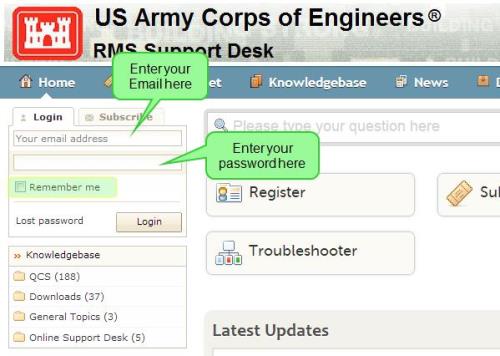
Screen shot of the Login Panel in Support Desk
Step 1: Entering your email
To log into RMS Support Desk you will need to enter the email address you used when you registered. Enter it into the top box in the Login Panel as shown in the screen shot above. To see our article on how to register in RMS Support Desk click here.
Your email address is not case sensitive.
Step 2: Entering your password
After you have entered your email address you will enter your password in the box below your email address as shown in the screen shot.
Your password is case sensitive.
Step 3: Remembering your Login Information for Future Visits (Optional)
If you wish to have RMS Support Desk remember your email and password so that on future visits you do not need to enter them you will need to check the box next to the label "Remember Me". In the screen shot it is highlighted in yellow.
Step 4: Logging in
After you have completed entering your email and password you will need to click on the [Login] button. The [Login] button is shown in the screen shot in the lower right corner of the Login Panel.
If you successfully logged in the Login Panel will display links to edit your account settings as shown below in the green highlight as well as a link to view any tickets you have previously submitted.
