How can I debug QCS networking problems?
Introduction
It can be difficult to debug problems when the QCS client on one computer cannot connect to the QCS database server on another computer. However there are two DOS commands, PING and TELNET, that can be helpful. This article shows how you can use these two commands to help you solve connection issues between your clients and the server. The first command you will want to use is PING. Depending upon the results you get with the PING command you will want to use the TELNET command.
Opening a DOS Command Prompt Window
To run these commands you will have to open a Command Prompt window. You can do that by performing the following steps:
- Click on your "Start" button in the lower left corner of your screen.
- Select "Run ..." option from the Start Menu.
- In the Run window enter the letters cmd in the text box.
- Click on the [OK] button to open the Command Prompt window.
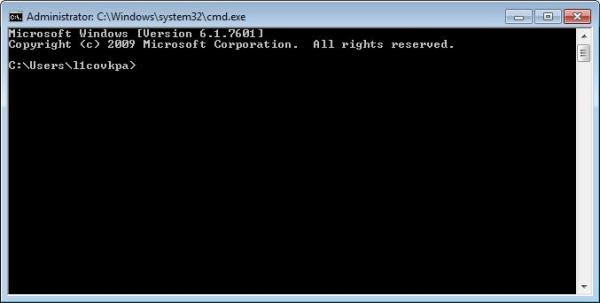
The Command Prompt window will then appear. It is a black window that is reminiscent of those old computer screens that were in use before graphical interfaces such as Microsoft Windows appeared as shown below:
PING Command
You will run the PING command by typing the following at the command prompt:
PING <computer name>
This command will send packets of information to the computer specified by <computer name>. If there is a network connection between the computer you are issuing the command from and the computer specified by <computer name> the packets will be successfully returned. You should see the same highlighted results as shown in the window below:
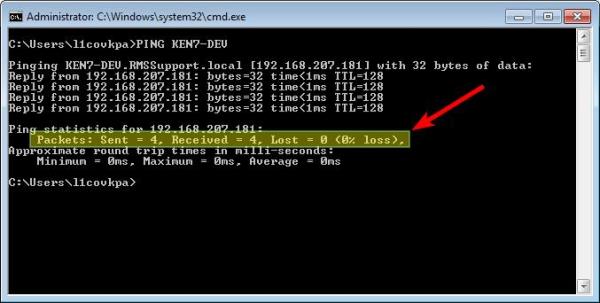
This is a good test to determine if there is a network connection between the computers. If the packets are not returned then there is a problem with the network between the two computers and QCS will not work. If none of the packets were lost then there is a connection between the two computers. You may then use the TELNET command to see if the computer you were pinging is monitoring port that is used by QCS, 3074, as described next.
TELNET Command
You will run the TELNET command by typing the following at the command prompt:
TELNET <computer name> 3074
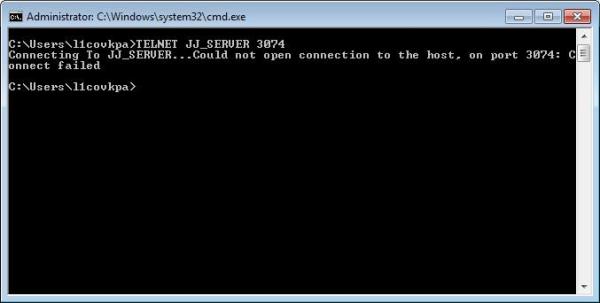
This command will attempt to "talk" to the computer specified by <computer name> on the port used by QCS, 3074. If the two computers are able to "talk" to each other on port 3074 your DOS command window will turn all black. Even though nothing is being displayed the two computers have been able to say "hello" to each other so to speak. If there is a problem with the network or a firewall on your computer or the computer specified by <computer name> blocks communications on port 3074 then you will see an error message in the DOS command window. The message will say something like "Could not open connection to the host on port 3074" as shown below:
If you are running Windows 7 or Vista you may have to install TELNET. To do that you will need to use the Windows Features tool to install it. Follow these steps:
- Click "Start", and then click "Control Panel".
- On the "Control Panel" Home page, click "Programs and Features".
- In the Programs and Features section, click "Turn Windows features On or Off" link in the upper left corner.
- If the User Account Control dialog box appears, confirm that the action it displays is what you want, and then click Continue.
- In the Windows Features list, select Telnet Client, and then click [OK].
Summary
In conclusion, use the PING command to make sure you have basic network connectivity between your computer and the computer specified by <computer name>. If that test passes then use the TELNET command to see if you have any firewall issues between the two computers.