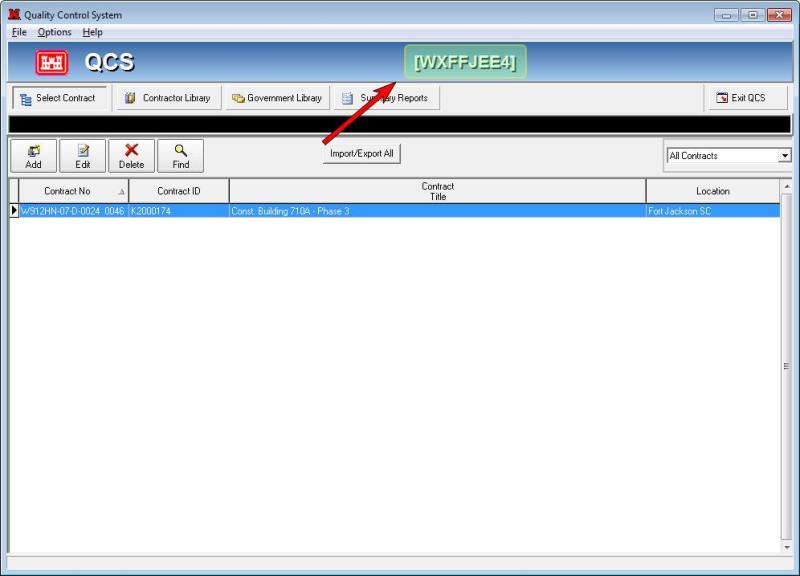
How can I find my Site ID?
When QCS is installed onto your computer one of the things that the install process does is to create a unique site ID for your site. The site ID is very important as imports and exports use the site ID to know where to get data from and what data needs to be copied or loaded into an export file. If you have not installed QCS onto your computer then do that first. If you have installed QCS onto your computer, there are four places where you can directly find out what the ID is for your site. Also there are some other places where you can find out what your site ID is but in those places the site ID will be mixed in with other information that will make it more difficult to find your site ID.
Here are the easiest places to find your site ID:
1.When logging into QCS you will see a button called [Database
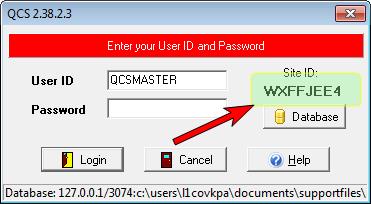
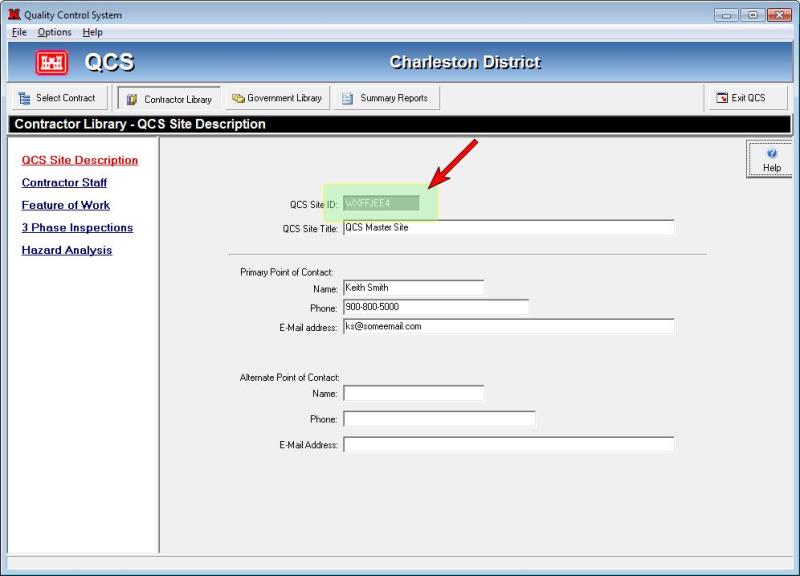
2.Once QCS opens up and you are looking at the main QCS screen with a list of all your contracts you can click on "Contractor Library | QCS Site Description". QCS will then display your site ID near the top of QCS in a dark gray text box along with other information that you may enter for your site.
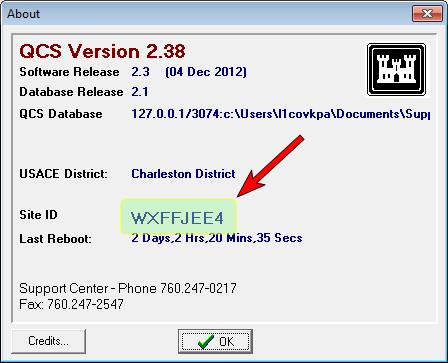
3.You can click on the "Help | About" menu option to open the About window. In this window QCS will report your site ID.
4.On the opening screen of QCS, the site ID is indicated in the very top bar, in brackets, as shown below.